Import Stops from Excel (Template + Step-by-Step)
Importing stops from Excel is the fastest way to build a multi-stop route.
Use the recommended columns below to avoid failed addresses and create routes that are feasible in the real world
(including time windows and service time when needed).
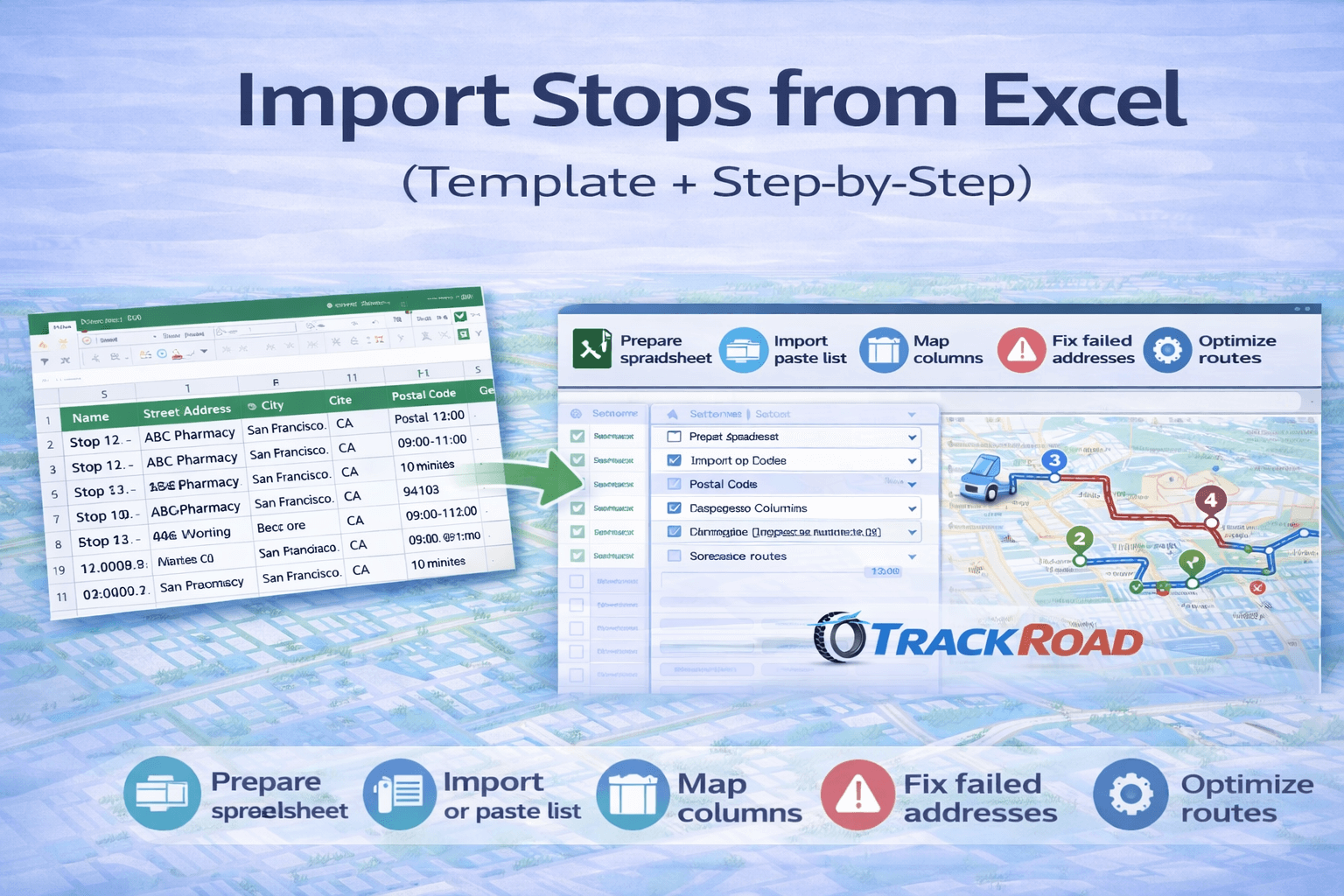 A clean Excel template (one row per stop) imports faster and reduces address failures.
Recommended Excel template (columns)#
Use one row per stop. The more complete the address, the fewer failures you’ll see.
If you can, split address into multiple columns (Street, City, State, Postal Code).
| Column |
Required? |
Example |
| Name |
Recommended |
Stop 12 – ABC Pharmacy |
| Street Address |
Yes |
1200 Market St |
| City |
Recommended |
San Francisco |
| State / Province |
Recommended |
CA |
| Postal Code |
Recommended |
94103 |
| Phone / Notes / Customer ID |
Optional |
555-0123 / “Back door” / CUST-1042 |
| Time Window |
Optional (high impact) |
09:00–11:00 |
| Service Time |
Optional (high impact) |
10 minutes |
Tip: If a stop must happen within a delivery window, include it in the spreadsheet.
Time windows are a major reason routes “look good” but fail in execution.
Learn more:
Route optimization with time windows.
How to import stops from Excel (step-by-step)#
Step 1 — Clean your spreadsheet
- One row per stop
- No merged cells
- Remove empty rows at the bottom
- Keep a single header row
Step 2 — Include complete addresses
Incomplete addresses are the #1 cause of failed imports. If you only provide a street name without city/state/postal code,
geocoding will be less reliable.
Step 3 — Add optional routing fields (if you need them)
If you’re running delivery or field service operations, add time windows and service time
to make your schedules realistic.
Step 4 — Import stops into TrackRoad
Open the routing tool and import/paste your stop list. Then map your spreadsheet columns to the correct fields.
Step 5 — Review and fix any failed stops
Resolve incomplete/ambiguous addresses, then re-import or correct them directly.
Optional fields that improve route optimization#
Time windows
Time windows (e.g., 9:00–12:00) force the optimizer to create a feasible schedule. Without them, the “shortest” route may violate customer requirements.
Service time
If stops take time (unload, paperwork, check-in), service time prevents unrealistic ETAs and overbooked routes.
Vehicle assignment or constraints (for fleets)
If you have multiple drivers, you’ll usually want multi-vehicle routing so stops can be distributed across vehicles.
Learn more: Multi-vehicle route optimization.
Common import mistakes (and fixes)#
- Merged cells: unmerge them (imports often break when rows aren’t consistent).
- Multiple header rows: keep one header row only.
- Blank rows: delete empty rows inside the data range.
- Two stops in one row: split into separate rows.
- Missing city/state/postal: add them to reduce ambiguous matches.
- Inconsistent formats: keep time windows and service time consistent across rows.
Troubleshooting failed / ambiguous addresses#
If a stop fails to import or appears in the wrong location, it’s usually caused by incomplete address data.
Fix the row and try again.
- Add missing city/state/postal code
- Avoid abbreviations that create ambiguity (e.g., “Main St” without a city)
- If you have them, use suite/unit fields consistently
If your routing workflow includes delivery windows, make sure you’re also using:
time windows
and realistic
service time.
FAQ: Import Stops from Excel#
What columns should my Excel file include?
At minimum include Street Address. For best results also include City, State/Province, and Postal Code.
Add Name, Time Windows, and Service Time if you need realistic scheduling.
Can I include time windows and service time?
Yes. These fields help the optimizer create feasible schedules, especially for delivery and field service.
Why do stops fail during import?
The most common causes are incomplete addresses, merged cells, extra header rows, blank rows, or inconsistent formatting.
Clean the file and try again.
What should I do after importing?
Optimize the route, review total miles/time, add vehicles if you have multiple drivers, then dispatch routes.
Ready to Import Stops and Optimize Routes?
Upload your Excel file, import stops in seconds,
and let TrackRoad generate optimized routes automatically.