Best Route Planner for Multiple Stops (10–100+ Stops)
If you’re planning routes with multiple stops, the “best route planner” depends on your stop count and constraints.
Google Maps is great for a few stops.
If you have 10+ stops, time windows, or multiple drivers, you usually need route optimization software.
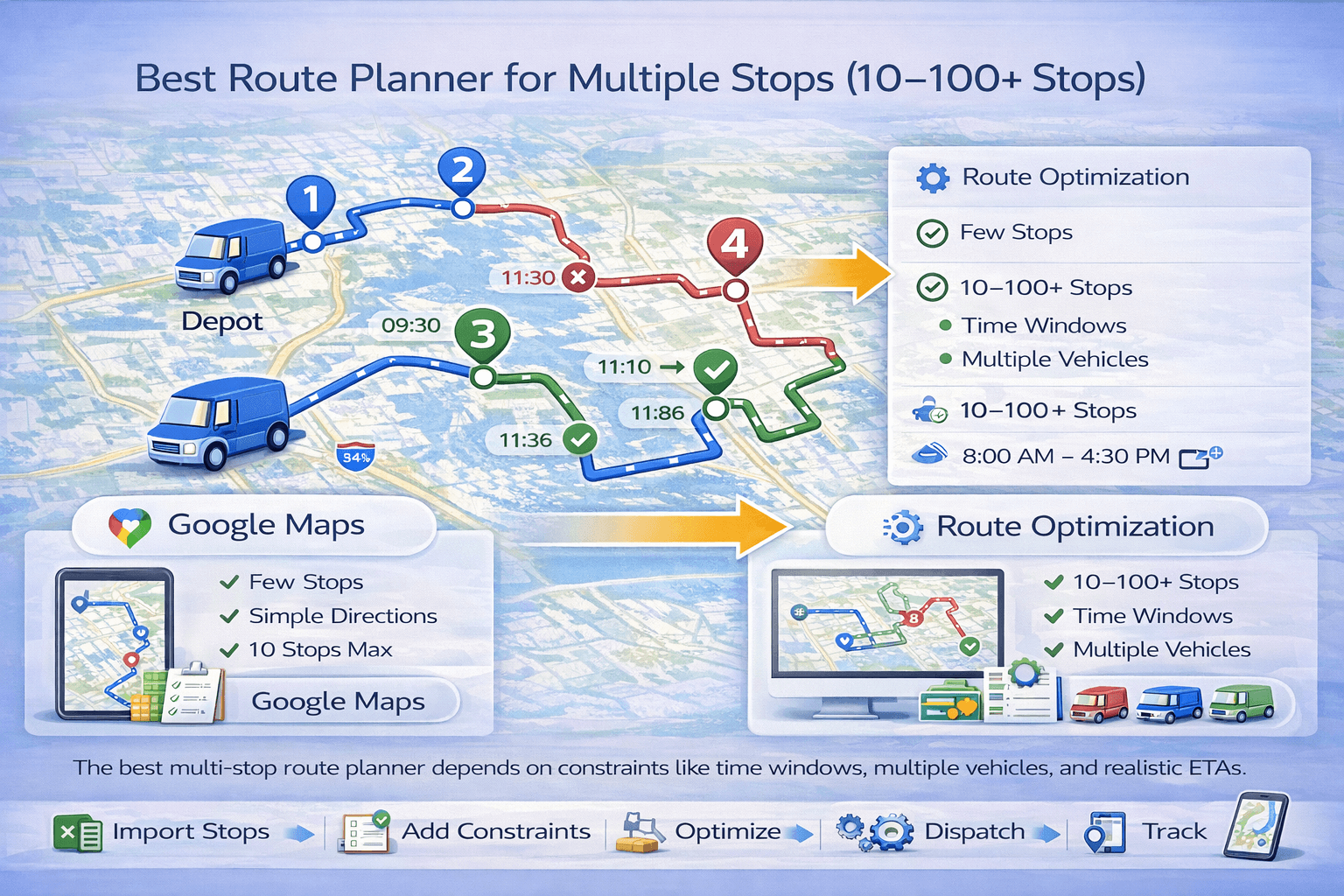 The best multi-stop route planner depends on constraints like time windows, multiple vehicles, and realistic ETAs.
Rule of thumb: If you’re planning 10+ stops or any real constraints (time windows, multiple drivers, service time),
“navigation” turns into “optimization.”
- Use Google Maps if you have a few stops and just need directions.
- Use route optimization software if you have 10–100+ stops, time windows, multiple routes/vehicles, or need reliable ETAs.
New to optimization? Start here:
What is route optimization?
and
Route optimization vs Google Maps.
2) What is multi-stop route planning?#
Multi-stop route planning means building a route that visits multiple locations in one trip.
The core challenge is choosing the best stop order so you drive less, avoid backtracking, and keep your schedule feasible.
With many stops, the number of possible sequences explodes (this is why the problem is related to VRP):
Vehicle Routing Problem (VRP).
3) What makes a good route planner for multiple stops?#
- Stop optimization: automatically reorders stops to reduce miles/time.
- Real constraints: time windows, service time, working hours.
- Multiple vehicles: split stops across drivers and balance workload.
- ETAs & schedules: produces realistic arrival times, not just directions.
- Easy imports: Excel/CSV upload, copy-paste stops.
If you need time windows or multiple vehicles, these pages help:
time windows and
multi-vehicle routing.
4) Comparison table: Google Maps vs route optimization software#
| Feature |
Google Maps (Navigation) |
Route Optimization (TrackRoad) |
| Best route between points |
✅ Yes |
✅ Yes |
| Best stop order for 10–100+ stops |
⚠️ Limited |
✅ Yes (optimized) |
| Time windows (appointments / delivery windows) |
❌ No |
✅ Yes |
| Multiple vehicles / drivers |
❌ No |
✅ Yes (stop distribution) |
| Service time per stop |
❌ No |
✅ Yes |
| Working hours & shift limits |
❌ No |
✅ Yes |
| Capacity constraints (weight/volume) |
❌ No |
✅ Yes |
| Dispatcher workflow (review/balance/iterate) |
❌ No |
✅ Yes |
If your goal is just directions, Maps is great. If your goal is a feasible plan for many stops, you want optimization.
5) How to plan 10–50 stops efficiently (step-by-step)#
- Import stops (Excel or copy/paste address list).
- Add constraints (time windows, service time, priorities).
- Add vehicles (1 driver or multiple drivers, working hours).
- Optimize and review ETAs.
- Dispatch routes to drivers (mobile-ready execution).
Want the full operational guide:
How to optimize delivery routes.
7) Google Maps limitations for multiple stops#
- No scheduling constraints: time windows aren’t enforced.
- No multi-vehicle planning: can’t split stops across drivers.
- No service time: ETAs ignore stop duration.
- No capacity/workload balancing: routes can overload one driver.
Detailed comparison:
Route optimization vs Google Maps.
FAQ#
What’s the best free route planner for multiple stops?
For small trips, Google Maps can work. For 10+ stops, time windows, or fleets, a free route optimizer is usually better:
Free route optimization tool.
How do I optimize a route with 20–50 stops?
Use route optimization software. Import stops (Excel), add service time and time windows if needed, then generate routes automatically.
Can I optimize routes for multiple drivers?
Why do “optimized” routes sometimes look longer?
Constraints (time windows, working hours, priorities) can make the shortest route infeasible. Optimization finds the best feasible plan.