Dispatch Modes Explained (Auto, BalanceLocations, BalanceTime, Optima)
TrackRoad Dispatch API supports multiple DispatchMode options.
Each mode controls how stops are assigned and what the optimizer prioritizes
(speed, balance, feasibility, time windows, or minimum vehicles).
This guide helps you choose the right mode for your routing problem and avoid common dispatch mistakes like
UnassignedStops.
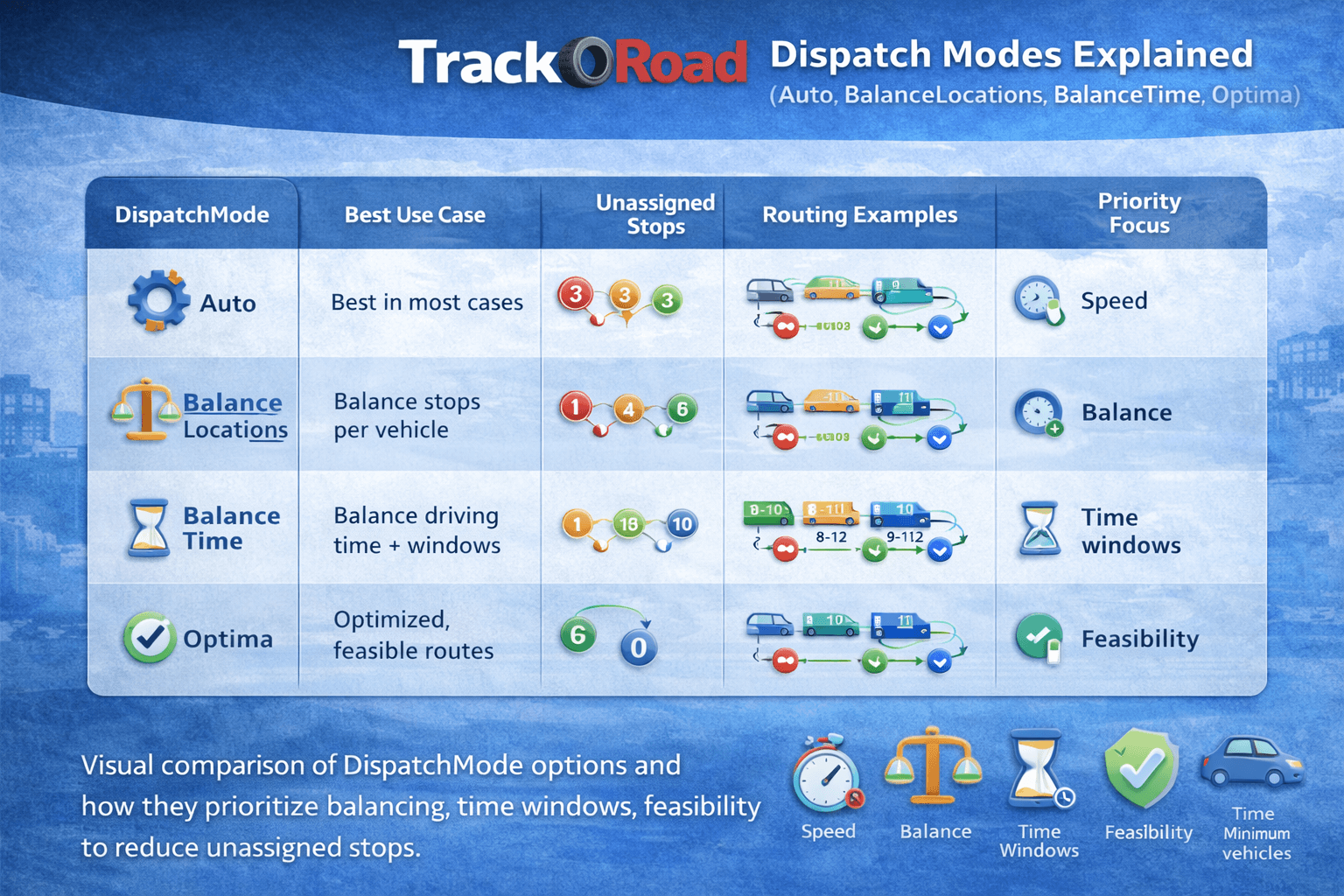 Visual comparison of DispatchMode options and how they prioritize balancing, time windows, and feasibility to reduce unassigned stops.
What is DispatchMode?#
DispatchMode is an optimization strategy used by TrackRoad’s routing engine.
It tells the optimizer what to prioritize when assigning stops to vehicles.
Some modes prioritize balanced workload, others prioritize shortest total time,
and some prioritize feasibility with constraints (such as time windows).
Important: If you use time windows, you should use Optima mode.
DispatchMode comparison (best use cases)#
| DispatchMode |
Best for |
Primary goal |
Works with time windows? |
Notes |
Auto |
Quick basic routing |
Pick best strategy automatically |
Sometimes |
Good default for simple use cases. Not ideal for strict time windows. |
BalanceLocations |
Fleet dispatching |
Balance number of stops per vehicle |
Limited |
Use for fair workload distribution across drivers. |
BalanceTime |
Fleet routing with service time |
Balance total route time per driver |
Limited |
Better than BalanceLocations when service time varies. |
Optima |
Time windows, scheduling |
Feasibility + optimized schedule |
Yes (recommended) |
Best for tight constraints. Higher compute cost but best results. |
MinimumVehicles |
Capacity planning |
Use as few vehicles as possible |
Sometimes |
Useful for estimating fleet size. Can create longer routes for fewer drivers. |
SingleRegion |
Single geographic cluster |
Keep routes inside one region |
Limited |
Useful when stop set is naturally clustered in one area. |
MultipleRegion |
Multi-city or distributed routing |
Split by region automatically |
Limited |
Good for businesses operating in multiple zones (north/south, city clusters). |
Auto mode#
Auto is the default strategy. The engine selects an internal mode depending on your input size and constraints.
- Best for: simple routing without strict constraints
- Best input: stops only or 1 vehicle
- Time windows: works only when constraints are loose
Recommendation: Start with Auto for early integration testing, then switch to Optima for production schedules.
BalanceLocations mode#
BalanceLocations tries to assign approximately the same number of stops to each vehicle.
- Best for: delivery fleets where each driver should do similar number of stops
- Common usage: 2+ vehicles, medium stop count
- Good when all stops are similar service time
If service time differs significantly between stops, BalanceTime is usually better.
BalanceTime mode#
BalanceTime balances total route time across vehicles (driving time + service time).
- Best for: field service, mixed workload deliveries, variable service times
- Inputs: multiple vehicles + realistic service time
- Produces “fair” routes based on total duration
Best practice: Always include Stops[].ServiceTimeMinutes if you use BalanceTime.
Optima mode (recommended for time windows)#
Optima is TrackRoad’s most advanced dispatch strategy. It is designed for schedules with constraints such as:
- Time windows
- Service time
- Vehicle working hours (TimeIn / TimeOut)
- Capacity limits (weight / volume)
If you have time windows, always use DispatchMode = Optima.
Other modes may produce infeasible results or return more UnassignedStops.
MinimumVehicles mode#
MinimumVehicles tries to complete the job using the fewest vehicles possible.
It is commonly used for planning and capacity estimation.
- Best for: determining required fleet size
- Tradeoff: some routes may become longer or less balanced
- Useful when you want to minimize cost (drivers/vehicles)
Use this mode to answer: “How many drivers do I need today?”
SingleRegion and MultipleRegion modes#
Regional modes are used when your stop set covers a large geography.
- SingleRegion: keeps routes inside one cluster/region
- MultipleRegion: splits stops across multiple geographic clusters
These modes are helpful for businesses delivering across multiple cities or large metro areas.
Which DispatchMode should I use?#
| Your goal |
Recommended mode |
Why |
| Quick routing (basic) |
Auto |
Fast + simple integration |
| Balance number of stops across vehicles |
BalanceLocations |
Fair distribution by count |
| Balance total route duration (driving + service) |
BalanceTime |
Better fairness for field service schedules |
| Time windows + working hours scheduling |
Optima |
Constraint-aware optimization |
| Use least vehicles possible |
MinimumVehicles |
Fleet size estimation / cost reduction |
How DispatchMode affects UnassignedStops#
UnassignedStops appear when your constraints cannot be satisfied. DispatchMode changes how aggressively the engine tries to fit stops.
- Optima: best chance to assign stops when time windows exist
- Auto / Balance modes: may produce more unassigned stops when constraints are strict
- MinimumVehicles: may leave stops unassigned if too few vehicles are possible under constraints
If your result contains UnassignedStops, try: add vehicles, increase TimeOut, reduce service time, widen time windows, or switch to Optima.
Swagger is the source of truth for full model fields. Knowledge Center pages focus on best practices and real-world use cases.